Synergia Client Installation Guide
Join the community GPU network — step by step
1 What is Synergia?
Synergia is a distributed GPU network that lets you share your computer's GPU power with the community. When your machine is idle, the Synergia client runs AI inference workloads (large language models) on behalf of other users, and stops the moment you need your GPU back — for gaming, video editing, or any other GPU-intensive task.
The client is a background daemon controlled from a menu-bar tray icon. It
communicates with a central manager over an encrypted WebSocket connection and
launches llama-server locally to process requests. All inference
runs entirely on your machine — no data leaves your machine except the model
output, which is forwarded back to the requester through the manager.
Security & privacy guarantees
Synergia is designed so that participating never compromises your machine's security or your privacy:
-
No open ports.
llama-serverbinds exclusively to127.0.0.1. The local dashboard also listens on127.0.0.1only. No port is reachable from your local network or the internet. - Outbound connection only. The client initiates a single outbound WebSocket to the manager. Your machine never accepts incoming connections from any external host.
- Manager identity verified. The client performs an Ed25519 challenge-response before exchanging any data. On first connect the manager's public key is pinned (TOFU); subsequent connections reject any key mismatch, preventing impersonation.
- Local inference only. All model computation runs on your hardware. Only the completed result is returned to the requester — prompt and context are never written to disk or retained after the request completes.
- No personal information collected. No name, email address, or account is required. Your identity is a hardware-derived cryptographic fingerprint that cannot be linked back to you.
- Explicit consent required. The worker will not join the cluster or process any request until you have read and accepted the data collection consent on the dashboard.
- Automatic GPU back-off. The monitor pauses inference when it detects you are using the GPU (gaming, rendering, etc.), with a hysteresis filter to avoid false positives from brief compositor spikes.
- Verified self-updates. Client binary updates are checked against a cryptographic signature before being applied. A tampered or mismatched binary is rejected and the previous version is kept.
Disk space
The client downloads AI models automatically when assigned to a role by the cluster manager. Model files are stored in the client's data directory and can be several gigabytes each. Make sure the drive where the data directory lives has enough free space before joining:
You can see which model is currently loaded and how much disk it uses on the dashboard (Open Dashboard → worker configuration panel).
2 Download the client
Open the download page served by your cluster manager in a browser. The page automatically detects your platform and presents the matching binary.
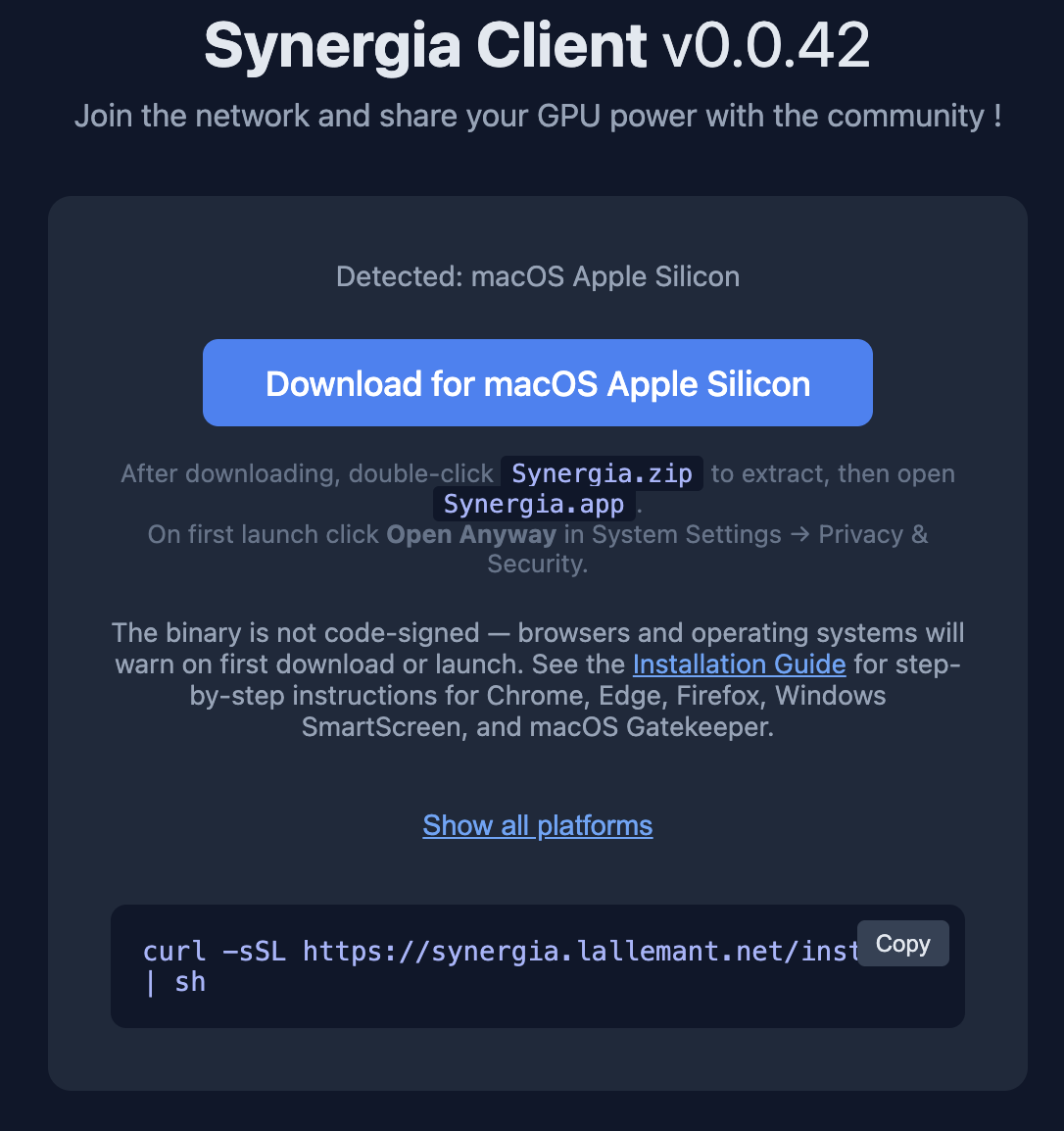
If your platform is not auto-detected, expand Show all platforms and choose the right build:
- macOS Apple Silicon — all M-series Macs (M1, M2, M3, M4)
- Linux x86_64 — most desktop Linux machines
- Linux ARM64 — Raspberry Pi 4/5, AWS Graviton, etc.
- Windows x86_64 — most Windows PCs
- Windows ARM64 — Snapdragon X Elite laptops, Surface Pro X
macOS — extract the app bundle
The macOS download is a Synergia.zip archive containing a
Synergia.app bundle. Double-click the zip to extract, then drag
Synergia.app to your Applications folder (or
~/Applications). Double-clicking the app shows only the menu-bar tray
icon — no Terminal window.
Linux / Windows — mark as executable
On Linux, mark the downloaded binary executable before running it:
chmod +x synergia-client-linux-amd64
On Windows, simply double-click the .exe after allowing it through SmartScreen (see the next section).
3 Browser & OS security warnings
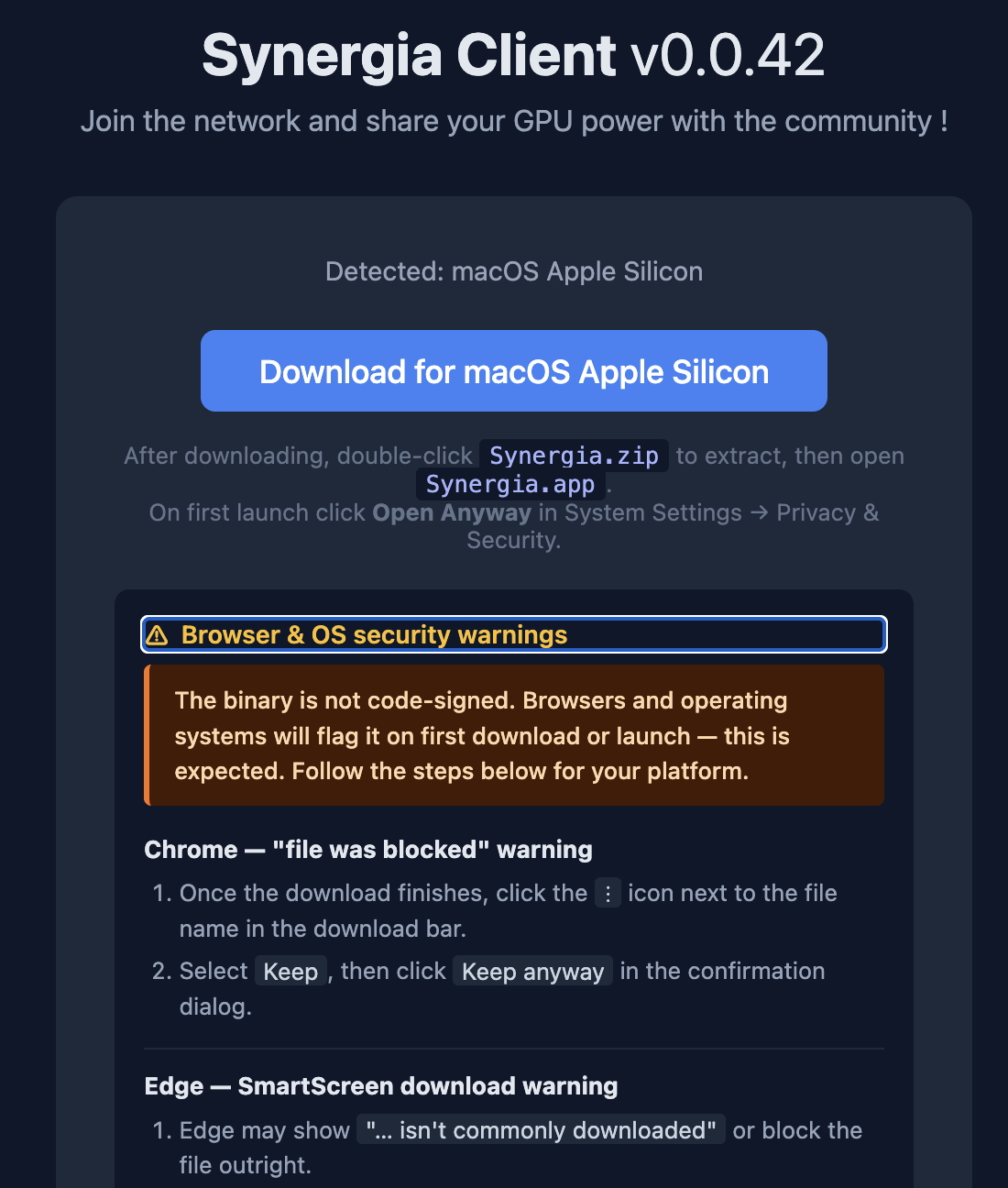
Chrome — "file was blocked"
- Once the download finishes, click the ⋮ icon next to the file name in the download bar.
- Select Keep, then click Keep anyway in the confirmation dialog.
Edge — SmartScreen download warning
- Click the … menu next to the file → Keep → Keep anyway.
- If the download was deleted, click Show more → Keep anyway.
Firefox — harmful file prompt
- Click Allow download (or OK on older versions) to proceed.
Windows — SmartScreen (when running the .exe)
- Click More info, then Run anyway.
- If the button is greyed out: right-click the file → Properties → check Unblock → OK, then try again.
macOS — Gatekeeper
- Open System Settings → Privacy & Security, scroll down to the blocked-app notice, and click Open Anyway.
- Alternatively, run once in a terminal to strip the quarantine flag:
xattr -d com.apple.quarantine ~/Applications/Synergia.app
4 The tray icon
Once launched, Synergia lives entirely in the system tray (menu bar on macOS, system tray on Windows and Linux). There is no main window — the tray icon is the only persistent UI element while the client is running.
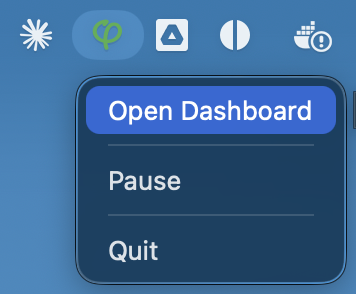
The tray menu has three options:
-
Open Dashboard — opens the local worker dashboard in your
default browser at
http://127.0.0.1:9876. The dashboard shows connection status, consent state, configuration, and logs. - Pause — temporarily stops the client from accepting new inference requests. The connection to the manager is maintained; the worker simply reports itself as unavailable. Useful when you need your GPU for a short task but don't want to quit entirely.
-
Quit — stops the client and the local
llama-serverprocess completely. The worker goes offline and will not receive any requests until it is started again.
5 Data collection consent
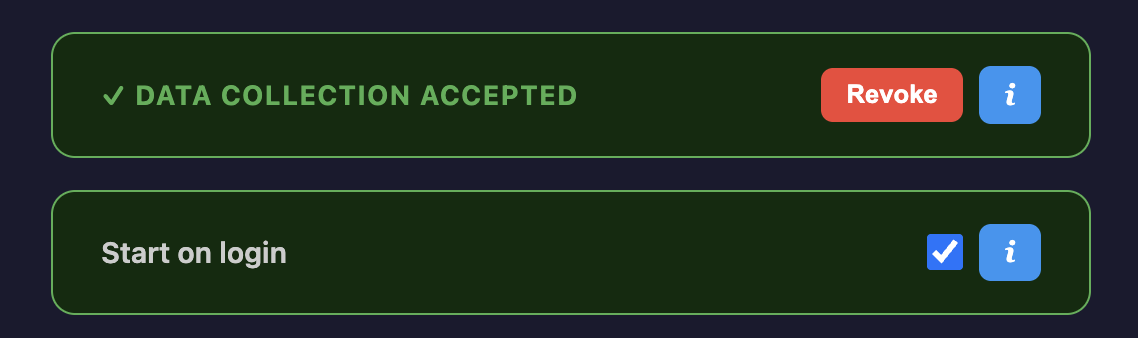
The first time you open the dashboard, you will see a consent screen. You must accept before the client will connect to the cluster and begin processing requests.
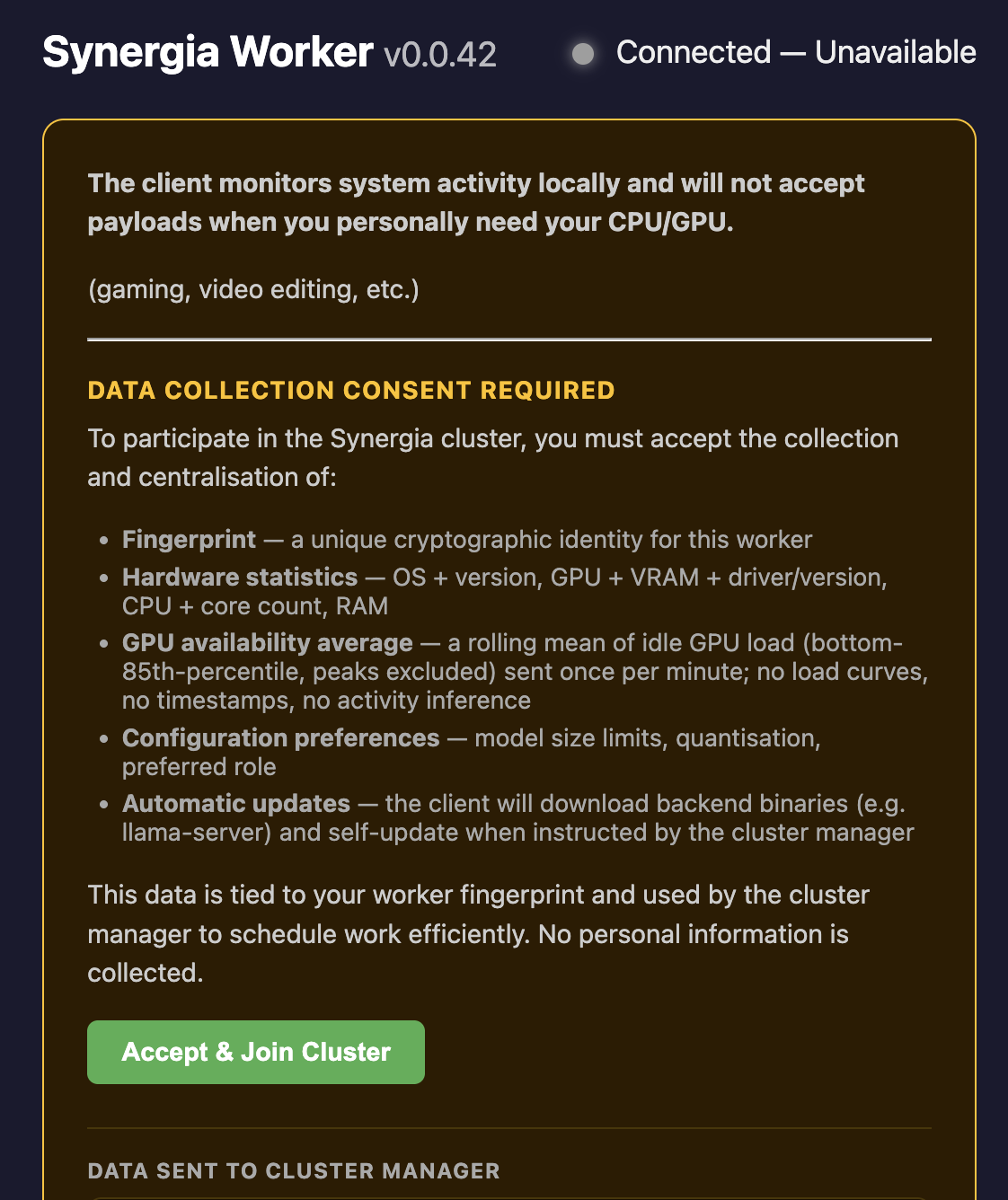
Accepting consent authorises the collection and centralisation of the following data:
- Fingerprint — a unique cryptographic identity for this worker, derived locally and never linked to any personal account.
- Hardware statistics — OS + version, GPU model + VRAM + driver/version, CPU + core count, RAM.
- GPU availability average — a rolling mean of idle GPU load (bottom-85th-percentile, peaks excluded) sent once per minute. No load curves, no timestamps, no activity inference.
- Configuration preferences — model size limits, quantisation, preferred role.
- Automatic updates — the client will download backend binaries (e.g.
llama-server) and self-update when instructed by the cluster manager.
Revoking consent
You can revoke consent at any time from the dashboard. Once revoked, the worker disconnects from the cluster and stops reporting data. Your local model files are not deleted — they remain on disk until you uninstall.
6 Dashboard controls
Because you are generously contributing your hardware to the cluster, you stay fully in control of how it is used. Open the dashboard at any time from the tray icon to adjust your settings.
Preferred Role
The Preferred Role dropdown in the worker configuration panel lets you tell the manager what kind of work your GPU should handle.
-
Auto (manager decides) — the manager assigns roles based on
your GPU's eligible workloads and available VRAM. Your worker may run
multiple
llama-serverinstances simultaneously if VRAM permits, maximising your contribution to the cluster. - A specific role (e.g. inference, embedding, ingestion) — restricts your worker to that workload type only. Choose this to dedicate your GPU to a single purpose or to limit what the cluster asks of it.
7 Start on login
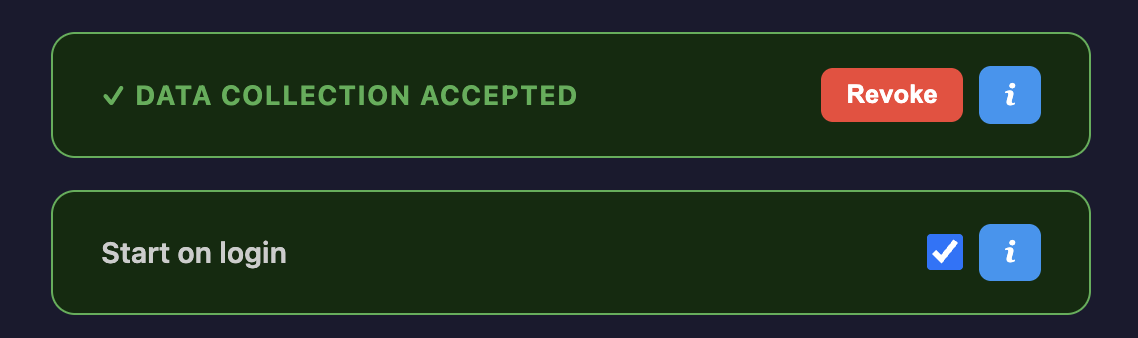
The Start on login toggle appears on the dashboard just below the consent banner. When enabled, Synergia is registered as a login item and starts automatically in the background every time you log in to your account — no need to launch it manually.
- On macOS, the client is added to System Settings → General → Login Items.
- On Linux, a
.desktopfile is placed in~/.config/autostart/. - On Windows, a registry entry is added under
HKCU\Software\Microsoft\Windows\CurrentVersion\Run.
8 Allow log streaming
The Allow log streaming toggle appears on the dashboard just below the Start on login setting. It is off by default. When enabled, the cluster administrator can request your client logs to be streamed live to the manager — for example to diagnose a connectivity problem or a model loading failure on your machine.
What is streamed
The same structured log lines you see in the built-in log viewer are forwarded in
real time. Each line contains a timestamp, a log level (DEBUG /
INFO / WARN / ERROR), and a short message.
No model weights, work-unit payloads, or personal files are included.
Revoking access
Uncheck Allow log streaming at any time to stop forwarding logs. The change takes effect immediately — any active stream is terminated within seconds.
9 Viewing logs & changing the log level
The View Logs button at the bottom of the dashboard opens the built-in log viewer. It shows a live stream of all client messages and is the first place to look when diagnosing connection issues or unexpected behaviour.
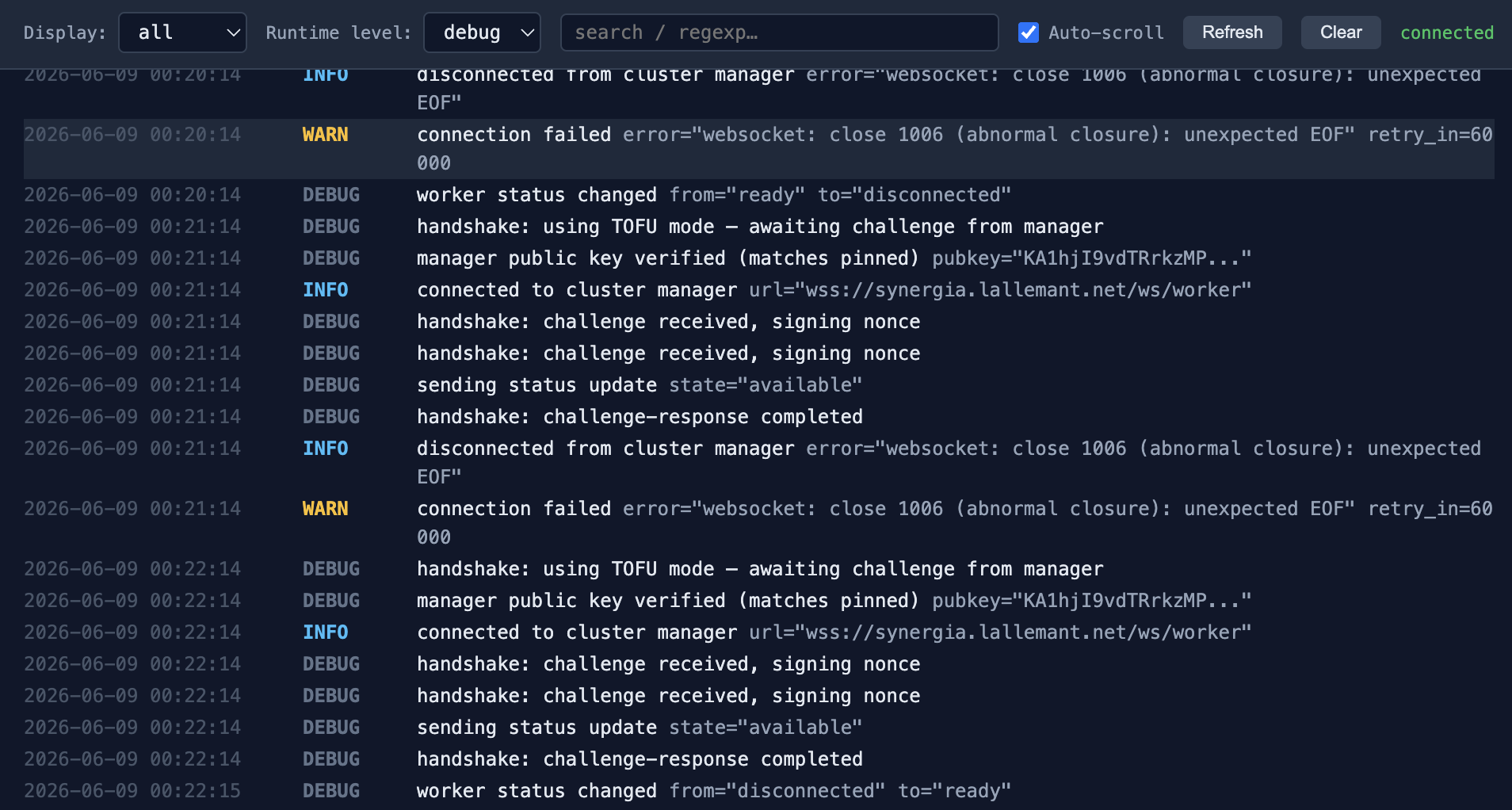
The toolbar has four controls:
| Control | Description |
|---|---|
| Display | Filter which log levels are shown — all, debug, info, warn, error. |
| Runtime level | Change the minimum level the client actually emits at runtime. Switching to debug adds verbose handshake, status, and GPU probe messages. Switch back to info to reduce noise. |
| Search / regexp | Filter the visible lines by a plain string or regular expression. |
| Auto-scroll | When checked, the view automatically scrolls to the latest entry as new lines arrive. |
The Refresh button manually reloads the log buffer, and Clear wipes the on-screen view (the underlying log file is not deleted).
info each time the client restarts. It is not persisted.
10 Uninstall
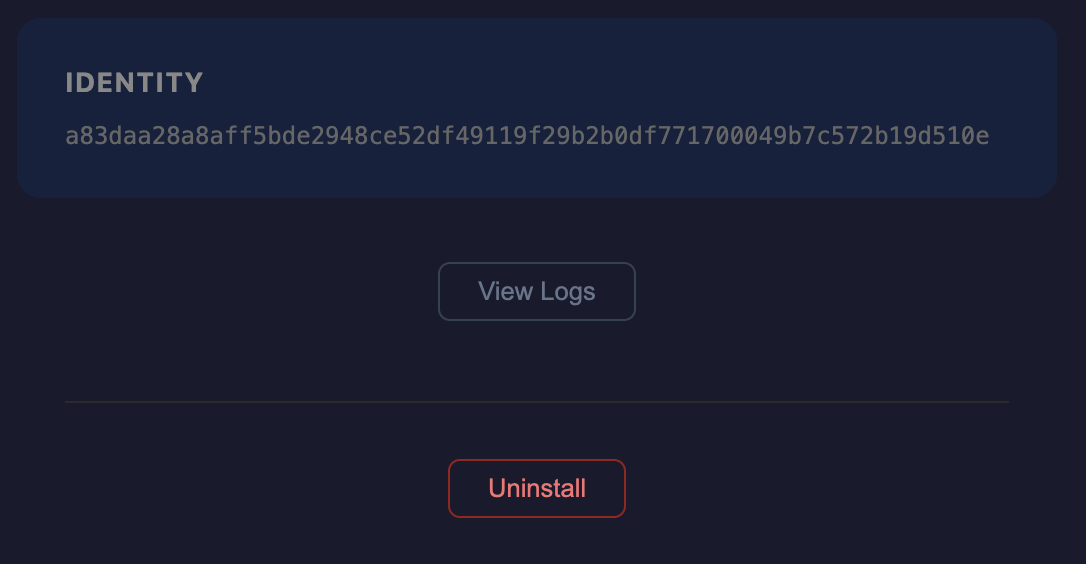
To remove Synergia completely, use the Uninstall button at the bottom of the dashboard. This will:
- Disconnect from the cluster and revoke the worker registration.
- Remove the login item (if Start on login was enabled).
- Delete the client binary, data directory, and all downloaded model files.
- Quit the running process.
Manual removal (Windows)
On Windows, the Uninstall button is not available from the dashboard because deleting a running executable is not permitted by the OS. To uninstall manually:
- Click Quit in the tray icon menu to stop the client.
- Delete the
synergia-client-windows-amd64.exebinary. - Delete the data directory (default:
%APPDATA%\Synergia). - Remove the login registry entry if you enabled Start on login:
Open regedit →HKCU\Software\Microsoft\Windows\CurrentVersion\Run→ delete theSynergiakey.
Your identity fingerprint
The identity fingerprint shown on the dashboard is a stable cryptographic identifier derived from your hardware. If you reinstall on the same machine, the same fingerprint will be generated and your worker history in the cluster will be preserved.